Day 10 Task: Advance Git & GitHub for DevOps Engineers.

Git Branching:
Branching in Git allows you to work on separate features, bug fixes, or experiments without affecting the main codebase. It's like a tree where each branch represents a different path of development.
📝 Main Branch:
The main branch, often called "master" or "main," represents the stable and production-ready code.
It's like the trunk of the tree, the foundation of your project.
🌿 Branch Creation:
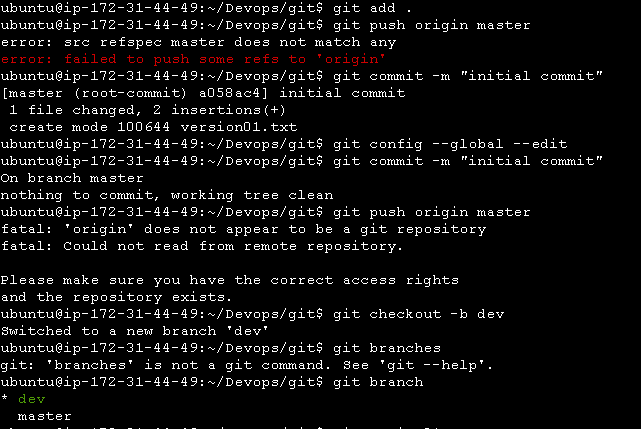
- To create a new branch, use the command:
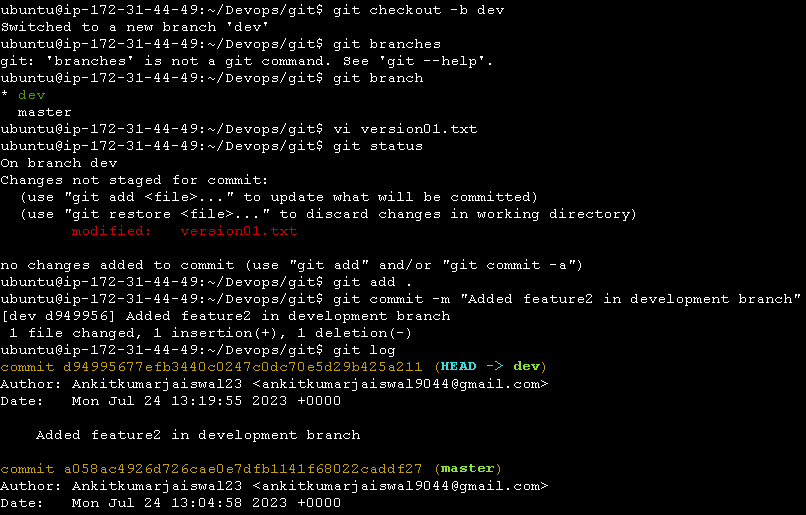
git checkout -b <branch_name>
Git Revert and Reset:
🔄 Git Revert:
When you use
git revert, it's like pressing an "undo" button for a specific change you made in your project.Let's say you made some changes to your code in a commit, and you later realize those changes caused issues or were incorrect. With
git revert, you can undo those changes without erasing the commit from your project's history.It works by creating a new commit that undoes the changes made in the previous commit, leaving your history intact.
Imagine you're writing a story, and you want to correct a mistake in one of the paragraphs without erasing the whole paragraph.
git reverthelps you do just that.
🔙 Git Reset:
git resetis like a time machine that allows you to go back to a specific point in your project's history and start from there.When you use
git reset, it's as if you're erasing some of your project's history. It moves your current position to a different commit, making everything after that commit disappear.There are different types of
git reset(like --soft, --mixed, --hard), and each one affects how much of your work is kept or discarded.
Git Rebase and Merge:
🔀 Git Merge:
When you use
git merge, it's like combining two separate lines of development back together.Imagine you and your friend start working on the same project, but you work on different parts independently. When you both finish,
git mergebrings your changes together into a single branch.Git creates a new "merge commit" that contains the combined changes from both branches, preserving the individual histories of each branch.
This is a common way to integrate changes from one branch into another.
🔄 Git Rebase:
git rebaseis like moving your changes to a different starting point in your project's history.Instead of combining branches like in
git merge, it allows you to place your changes on top of another branch or commit.Imagine you have a branch, and the main branch has been updated with new changes. With
git rebase, you can take your changes, remove them from their original position, and place them on top of the updated main branch.
Task 1:
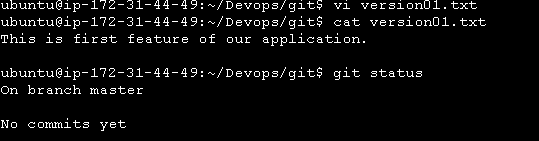
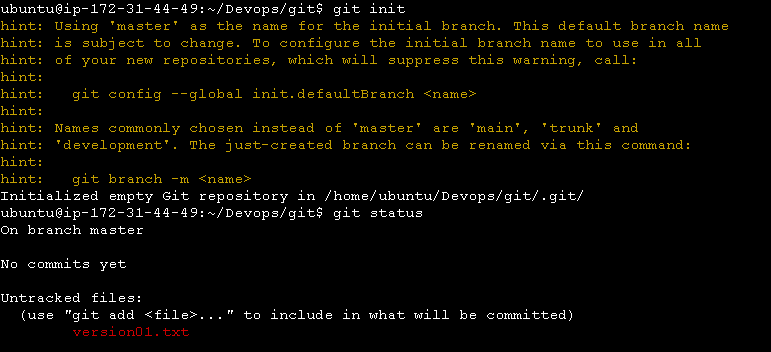
Add a text file called version01.txt inside the Devops/Git/ with “This is first feature of our application” written inside. This should be in a branch coming from master, [hint try git checkout -b dev], swithch to dev branch ( Make sure your commit message will reflect as "Added new feature"). [Hint use your knowledge of creating branches and Git commit command]
- version01.txt should reflect at local repo first followed by Remote repo for review. [Hint use your knowledge of Git push and git pull commands here]
Add new commit in dev branch after adding below mentioned content in Devops/Git/version01.txt: While writing the file make sure you write these lines
1st line>> This is the bug fix in development branch
Commit this with message “ Added feature2 in development branch”
2nd line>> This is gadbad code
Commit this with message “ Added feature3 in development branch
3rd line>> This feature will gadbad everything from now.
Commit with message “ Added feature4 in development branch
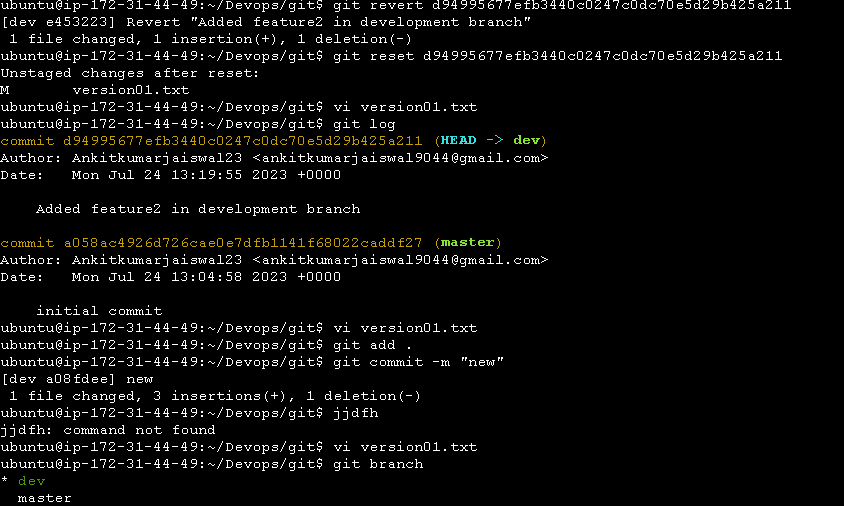
Restore the file to a previous version where the content should be “This is the bug fix in development branch” [Hint use git revert or reset according to your knowledge]
Task 2:
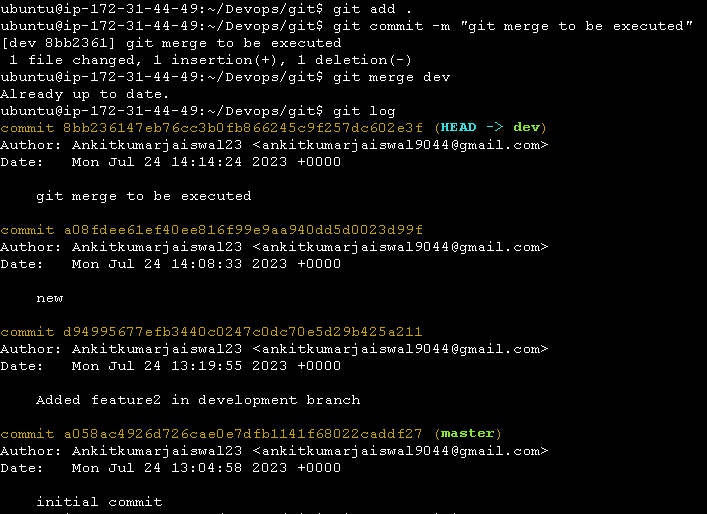
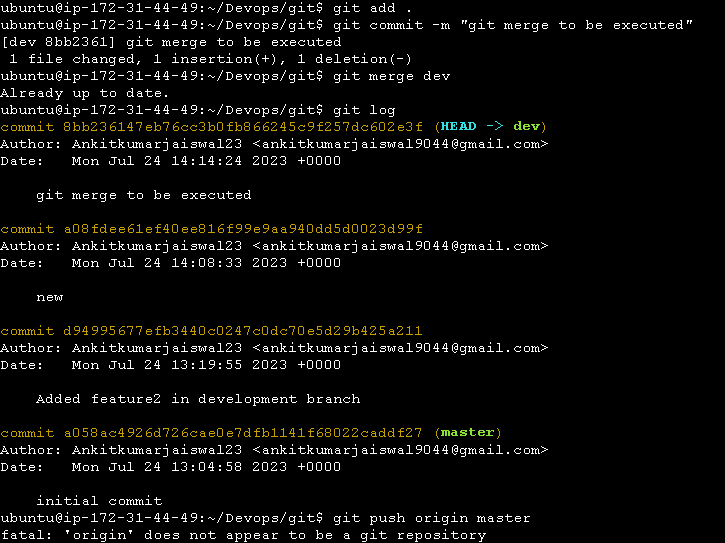
Demonstrate the concept of branches with 2 or more branches with screenshot.
add some changes to
devbranch and merge that branch inmaster
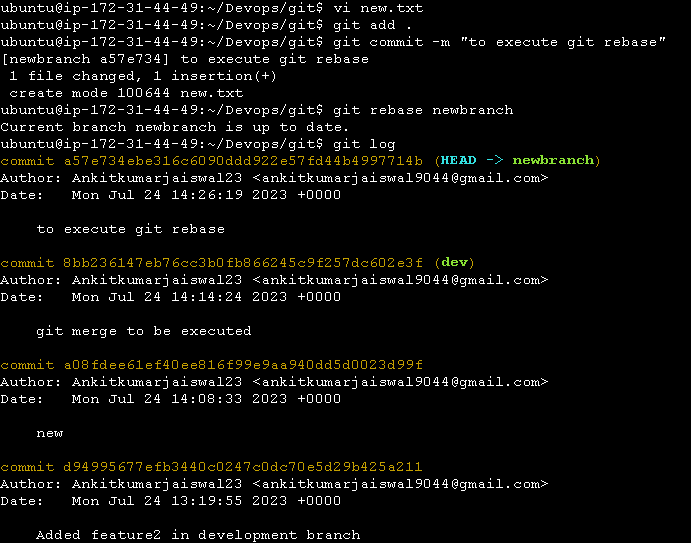
- as a practice try git rebase too, see what difference you get.
Thanks for Reading.


