Day 17 Task: Docker Project for DevOps Engineers.
Dockerfile:
A Dockerfile is a text file used to define a set of instructions for building a Docker container image. The Docker container image contains an isolated environment with all the necessary dependencies, libraries, and application code to run a specific application.
FROM: This instruction specifies the base image for the container.
WORKDIR: Sets the working directory inside the container where the application code will be placed.
COPY: Copies the current directory contents (your application code) into the container's /app directory.
RUN: Executes the specified command inside the container during the image build process.
ENV: Sets an environment variable inside the container.
Task :
Create a Dockerfile for a simple web application (e.g. a Node.js or Python app)
make a directory and Clone the repository in your system using the command git clone <remote url>
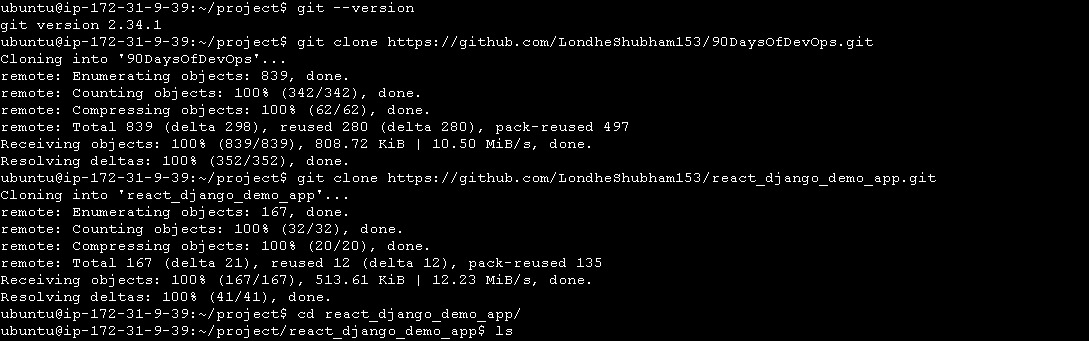
Create a Docker file.
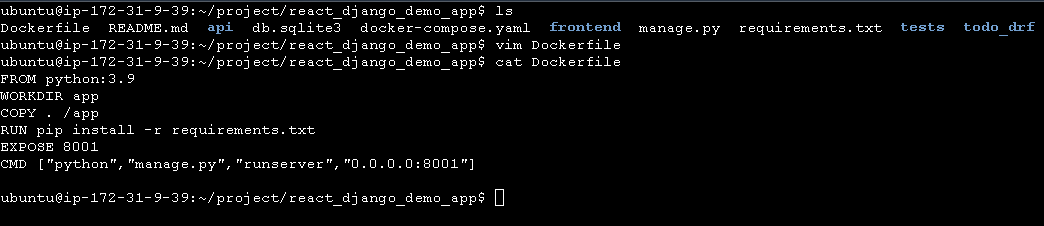
Docker file fields:
FROM python:3.9
It tells docker, which base image you want to base your image from. In our example, we are creating an image from the Python image.
WORKDIR app
As the name suggests, WORKDIR sets the directory that the container starts in. Its main purpose is to set the working directory for all future Dockerfile commands.
COPY . /app
copy your application code inside the docker image.
RUN pip install -r requirement.txt
The command is used for all dependencies in the requirement file.
EXPOSE 8001
commands used for release port 8001 within the container.
CMD ["python","manage.py","runserver","0.0.0.0:8001"]
The command starts the server and runs the application.
Build the image using the Dockerfile and run the container:
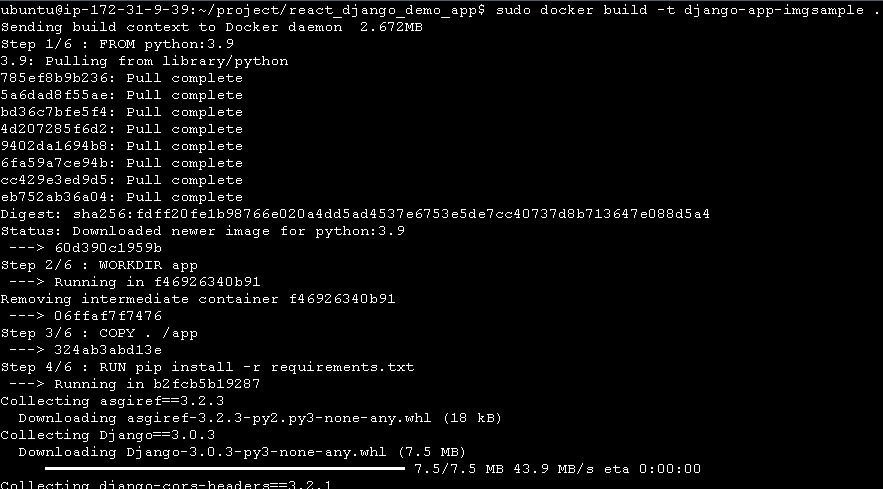
docker images: We can see all docker images.

- Run the image to create a container:
sudo docker run -d --name <container_name> -p 8001:8001 <image-name>

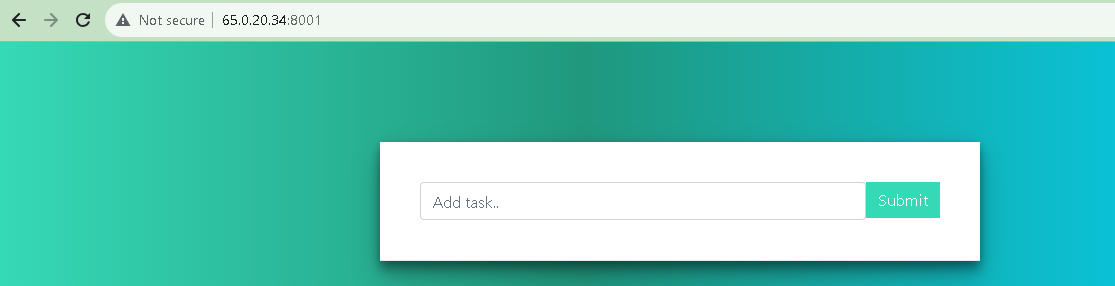
Verify that the application is working as expected by accessing it in a web browser:
Push the image to a public or private repository (e.g. Docker Hub )
Create an account in Docker Hub.
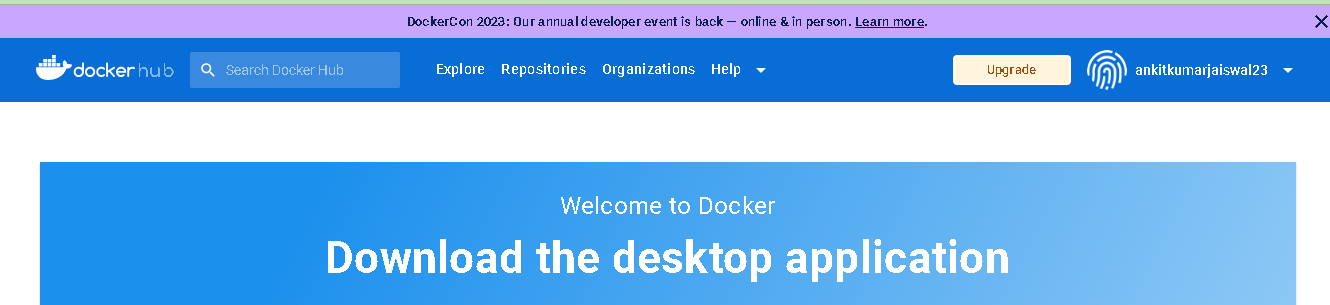
login to docker and enter your username & password of your docker hub

Check the docker images and Push that image to the docker hub using the docker push <image_name> command.

Completed.
Thanks for reading.


