Day 18 Task: Docker for DevOps Engineers

🐳 What is Docker Compose?
Docker Compose is like a magical wizard 🧙 that helps you manage multiple containers 🐋 for your applications. It's like a conductor 🎶 that orchestrates everything seamlessly.
📝 What does it do?
- It lets you define all the services 📦, networks 🌐, and volumes 📂 your app needs in one special file (docker-compose.yml).
🏗️ How does it work?
You write down the services your app requires, like a web server 🌐 or a database 🗄️.
Each service has a name, like "web" or "db", and you tell Docker which image 🏞️ to use (a pre-made software package).
You can set things like ports 🔌, environment variables 🌐, and data volumes 📂 for each service.
⚙️ How to run it?
- Just type "docker-compose up" in your command line 💻, and like magic, Docker Compose will create and start all your services.
🚀 What happens next?
Your app is now running with all its containers 🚢 together. You can see what's happening in real-time 🕒 in your terminal.
You can scale your services too, like having multiple web servers to handle more users 🔄.
⛔ How to stop it?
- When you're done, just type "docker-compose down" in your command line. All containers will stop and vanish 🌌.
💡 Why use it?
- Docker Compose is super handy for developers and teams because it simplifies managing complex applications 🎯. It ensures everyone runs the same setup everywhere, avoiding "it works on my machine" problems.
What is YAML?
YAML is like a friendly notebook 📓 that helps you write down data in a human-readable way.
It's all about simplicity and readability.
🚀 Why is it popular?
📋 Human-Readable: YAML is easy to read, even for non-programmers. No confusing symbols!
💼 Versatile: You can use it for configs, settings, and data exchange between apps.
🌐 Language Agnostic: It works with any programming language.
👍 Widely Adopted: Many popular tools and systems use YAML for their configurations.
Task-1
Learn how to use the docker-compose.yml file, to set up the environment, configure the services and links between different containers, and also to use environment variables in the docker-compose.yml file.
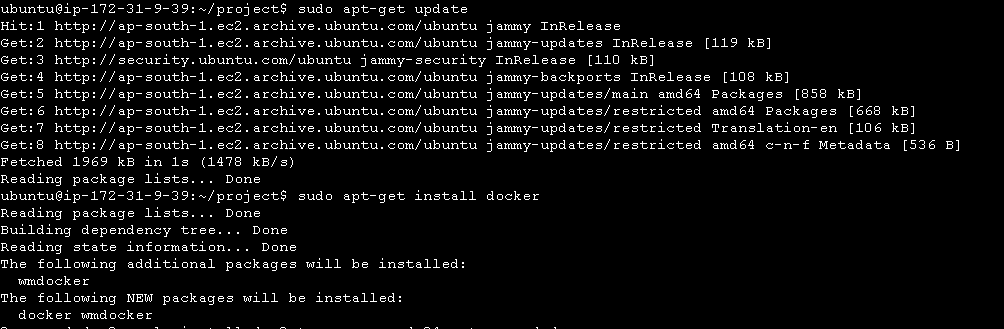
Update the package manager and install docker on your machine.
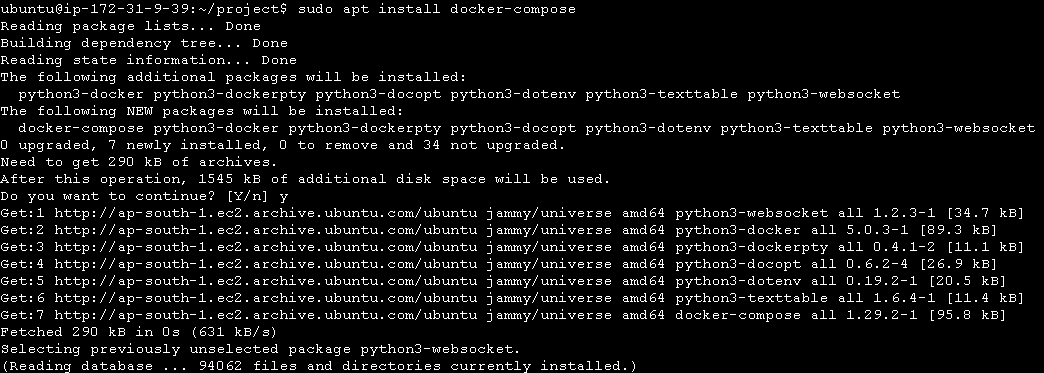
Install Docker-Compose:
Create a docker-compose.yaml file:
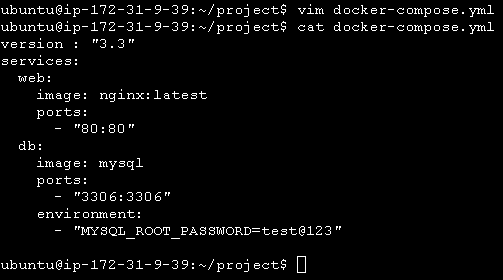
-3.3 is the version of the docker-compose.
-services contain the number of containers or applications the user wants to run.
-Ports refer to the particular application being exposed to an external URL.
-Environment passes the credentials to be passed to the container.
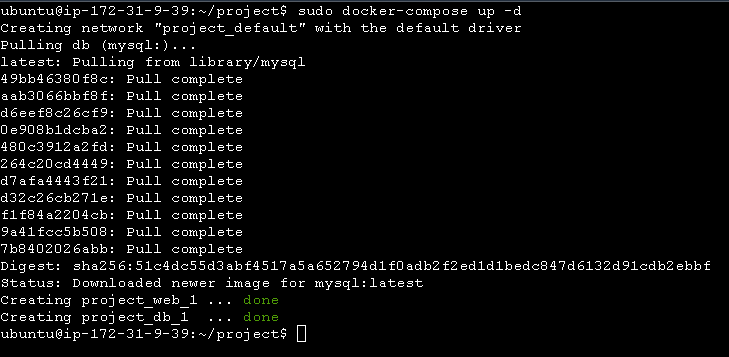
:Run docker-compose.yml file using docker-compose up -d
Check containers using the command docker ps:

Check for application status running or not.
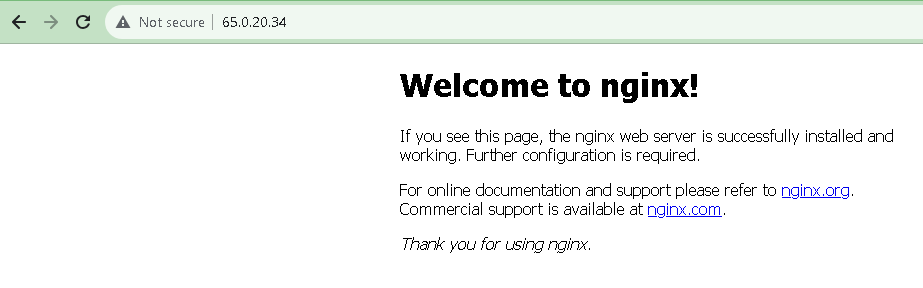
Since, we have exposed the nginx container port to the port 80 of the host machine, we can access the nginx server on the ec2 server ip like this:
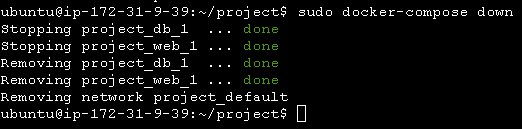
To stop the service- docker-compose down:
Task-2
Pull a pre-existing Docker image from a public repository (e.g. Docker Hub) and run it on your local machine. Run the container as a non-root user (Hint- Use usermod command to give the user permission to docker). Make sure you reboot the instance after permitting the user.
Pull the docker image from the docker hub.

Run the container using the command docker run -d –name <name> -p <port number>
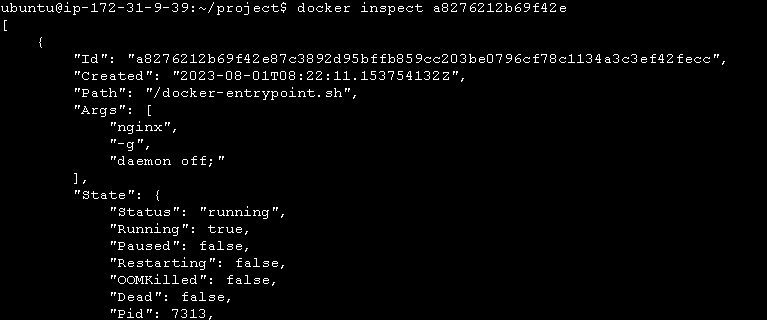
Inspect the container's running processes and exposed ports using the docker inspect command.

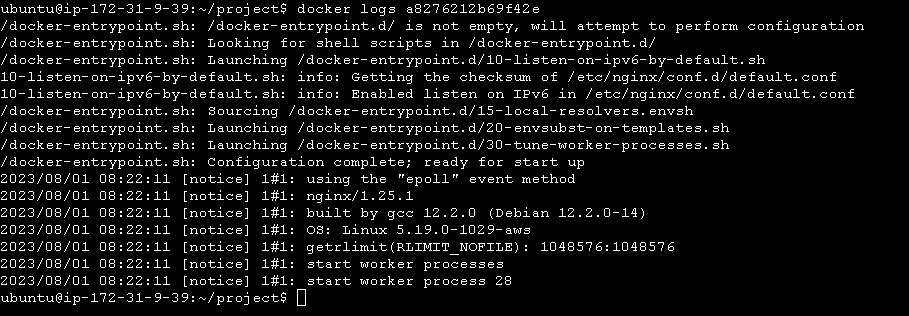
Use the docker logs command to view the container's log output:
Use the docker stop and docker start commands to stop and start the container.
To stop the container use the command docker stop <container name>

To start the container use the command docker start <container name>

Use the docker rm command to remove the container when you're done.

Thanks for reading.


