Day 9 Task: Deep Dive in Git & GitHub for DevOps Engineers.
- What is Git and why is it important?
Git is a version control system that is essential for software development and collaboration among developers. It provides a way to track changes in code and project files, ensuring that multiple people can work on the same project simultaneously without conflicts.
Git's importance lies in several key benefits:
👩💻 Version Control: It prevents code loss and helps developers track progress, making it easier to understand and manage project changes.
🤝 Collaboration: With Git, multiple team members can collaborate effectively, working on different aspects of a project simultaneously.
📦 Code Integrity: Git ensures that changes are well-documented and reviewed before being incorporated into the project, maintaining code quality.
🛡️ Bug Tracking: If issues arise, Git allows developers to identify which changes caused the problem, aiding in quicker bug resolution.
📈 Continuous Improvement: It promotes a continuous integration and deployment workflow, enabling frequent updates and improvements.
Difference Between Main Branch and Master Branch:
🌟 Main Branch:
Naming: In response to the movement against the use of terms with historical associations of slavery and oppression, some developers and communities have adopted "main" as the default branch name instead of "master."
Default Branch: Many platforms like GitHub and GitLab have changed their default branch name to "main" to encourage the usage of more inclusive terminology.
🌟 Master Branch:
Traditional Name: Historically, "master" was the default and most commonly used name for the primary branch in Git repositories.
Still Widely Used: Despite the trend towards using "main," many developers and projects still use "master" as the default branch name.
Explaining the Difference Between Git and GitHub: Git and GitHub are often used interchangeably, but they serve different purposes:
Git: Git is a distributed version control system that resides on your local machine. It tracks changes and allows version control even without an internet connection.
GitHub: GitHub, on the other hand, is a web-based platform that hosts repositories remotely. It leverages Git's functionality and provides additional collaboration tools, making it an excellent platform for teams to share, collaborate, and contribute to projects.
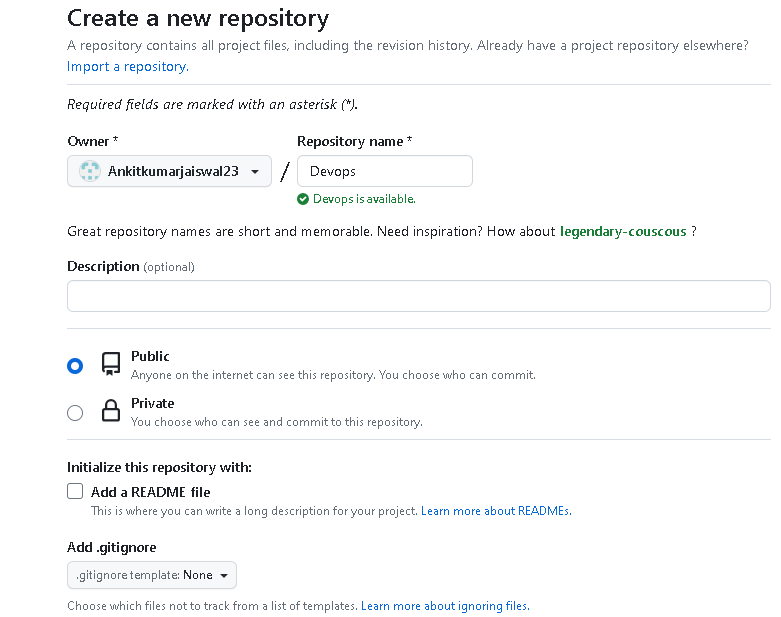
How to Create a New Repository on GitHub**?**
Sign in to GitHub: If you already have a GitHub account, sign in. If not, you can create a new account for free at https://github.com/join.
Access Your Dashboard: Once signed in, you'll be taken to your GitHub dashboard. Click on the "+" sign at the top right corner of the page and select "New repository."
Repository Settings: You'll be directed to the "Create a new repository" page.
Repository name: Enter a unique name for your repository. This is how others will identify it.
Description (optional): Provide a brief description of your repository's purpose.
Visibility: Choose whether you want your repository to be public (visible to everyone) or private (only visible to you and collaborators). Private repositories may require a paid GitHub subscription.
Initialize with a README (optional): If you want to start your repository with a README file (a good practice to explain your project), select the checkbox.
Add .gitignore and License (optional): You can choose to add a .gitignore file to specify which files or directories should be ignored by Git. Additionally, you can add an open-source license to your repository.
Create the Repository: Click on the "Create repository" button. Voilà! Your new repository is now created on GitHub.
Clone the Repository (optional): If you want to work on the repository locally on your computer, you can clone it using Git. Click on the green "Code" button on your repository's page, copy the repository URL, and then use the
git clonecommand in your terminal to create a local copy.
Difference Between Local & Remote Repository and Connecting Them -
Local Repository:
It's the copy of your project on your computer.
You can work on it, make changes, and save versions offline.
Remote Repository:
It's a copy of your project stored on a server (like GitHub).
It allows collaboration with others and makes your code accessible from anywhere.
Connecting Them:
Create a remote repository on GitHub.
Copy the remote repository's URL.
Use
git remote add origin <remote_repository_url>to link your local repo to the remote one.Push your changes from local to remote using
git push.
Now, your local and remote repositories are connected, enabling smooth teamwork and easy access to your project!
To connect your local repository to the remote repository:
Create a new repository on GitHub.
Copy the repository's URL.
In your local terminal, navigate to your project folder.
Use the command:
$git remote add origin <repository_url>This links your local repository to the remote one.
Tasks:
Task-1: Set Your User Name and Email Address 📝 Before diving into Git and GitHub, configure your user name and email address to be associated with your commits. Use the following commands:
COPY
$git config --global user.name "Your Name"
$git config --global user.email "youremail@example.com"
Task-2:a Create a Repository Named "Devops" on GitHub -
Tasks 2. b: Connect your local repository to the repository on GitHub.

Tasks 2. c: Create a new file in Devops/Git/Day-02.txt & add some content to it.

Thanks for reading.


